How do you stop buffering on a smart TV? Start by testing the home network and television before changing advanced player settings. Weak Wi-Fi, household congestion, low device storage, background apps and temporary connection problems are common causes. Follow these fixes one at a time so you can identify what actually improves streaming.
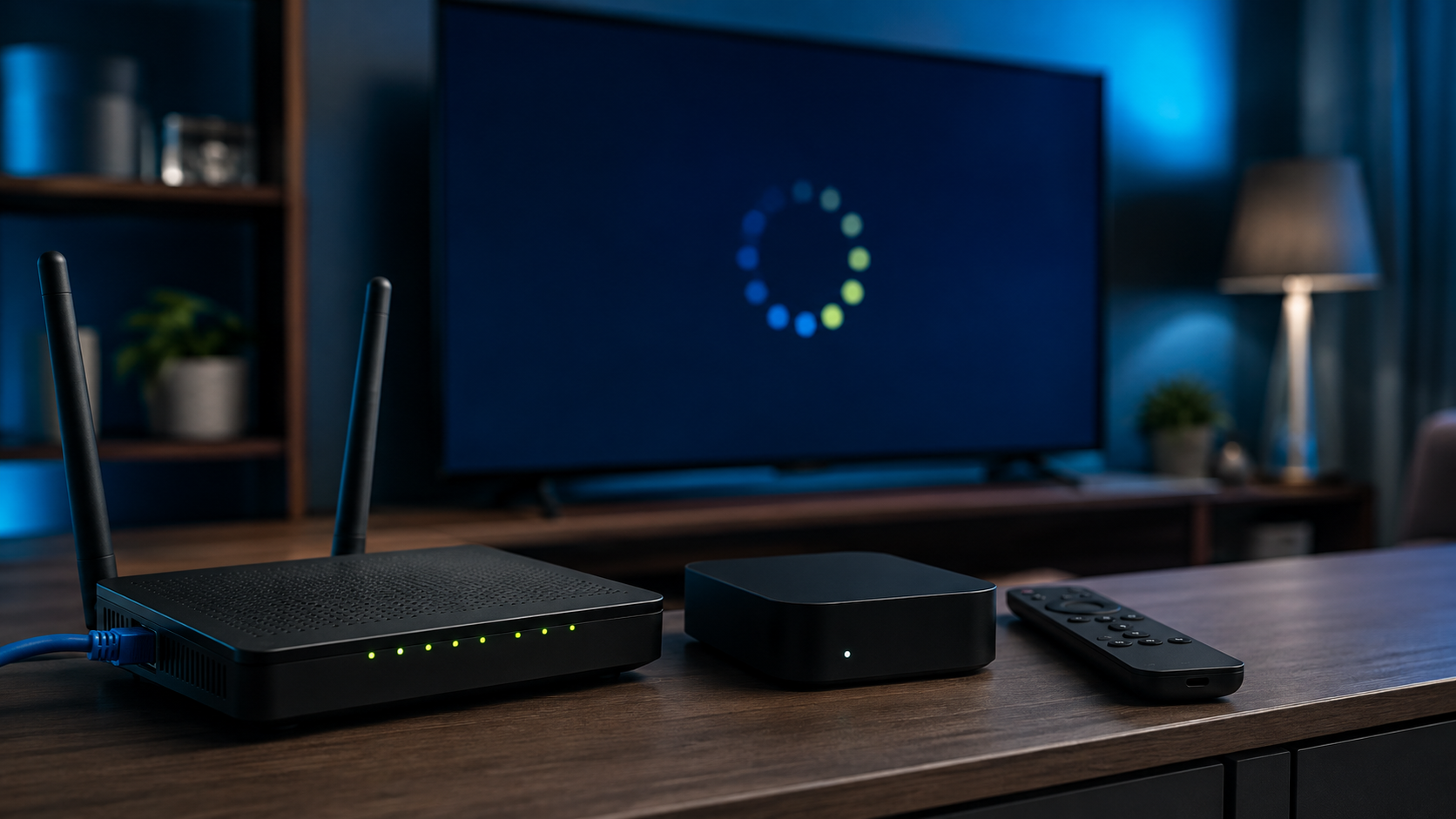
Quick smart TV buffering diagnosis
| What you notice | What to test first |
|---|---|
| Every app buffers | Internet speed, Wi-Fi signal and router |
| Only one app buffers | App cache, update and player settings |
| Buffering mainly at night | Household or neighborhood congestion |
| TV buffers but phone does not | TV Wi-Fi strength, storage and performance |
1. Restart the television and router
Close the streaming player, restart the smart TV or streaming device, and unplug the router for about 30 seconds. Wait for the internet connection to return fully before reopening the app. This clears temporary memory and connection problems.
2. Test speed beside the smart TV
Run a speed test on the television when possible, or on a phone placed beside it—not only beside the router. Compare results at the time buffering normally happens. Our internet speed guide for streaming TV includes targets for HD, higher-quality video and multiple screens.
3. Use Ethernet when possible
A wired connection is normally more stable for a fixed television or streaming box. Connect a suitable Ethernet adapter and cable, then test the same available stream again. A large improvement points to Wi-Fi rather than the player.
4. Improve the Wi-Fi signal
Place the router in an open, central position and reduce obstacles between it and the television. Use 5 GHz for nearby devices and 2.4 GHz where distance matters more than maximum speed. Avoid hiding the router inside a cabinet or behind a television.
5. Pause heavy household activity
Game downloads, cloud backups, video calls and large file transfers compete with streaming. Pause them temporarily and test again. If the problem disappears, the connection needs more available headroom during busy hours.
Want to test the complete setup?
Use the free 24-hour PlayHuddleTV trial on your own smart TV, Wi-Fi and player before choosing a plan.
6. Close background apps
Smart TVs and streaming sticks with limited memory can slow down when several apps remain open. Restarting the device is the simplest way to clear temporary load. Avoid installing apps you do not use.
7. Clear cache—not app data
Use the device settings to clear the streaming app cache. Do not clear app data unless you have safely stored your login details, because that action may remove the configured profile.
8. Update the app and device
Install stable updates from legitimate sources. An outdated operating system or player can create playback, security and compatibility problems. See our setup guides for supported IPTV players and devices if you need installation help.
9. Check available storage
Keep free space for temporary files and system updates. Remove unused apps, clear safe temporary files and restart the device after freeing storage.
10. Compare another supported player
Testing the same valid account in another compatible player can reveal whether one app is causing the problem. Change only one variable at a time so the result is meaningful.
When should you contact support?
Contact support when buffering continues after testing the network and device. Share the television or streaming-device model, player name, connection type, time of the issue and whether other available streams work. Never post private login information publicly.
Smart TV buffering FAQ
Why does my smart TV keep buffering?
The most common reasons are weak Wi-Fi, network congestion, limited device memory, low storage or an overloaded app. Test other apps and devices to separate a network issue from a television issue.
Does a fast speed test guarantee smooth streaming?
No. Wi-Fi interference, packet loss, latency and device performance can still cause pauses even when the average download speed looks high.
Will clearing the cache delete my login?
Clearing cache normally keeps the configured profile. Clearing app data may remove it, so read the device warning before confirming.
Should I use a VPN to stop buffering?
A VPN can add distance and overhead. Test the normal connection first and always follow the laws and service terms that apply to you.
Can an older smart TV cause buffering?
Yes. Limited memory, slow storage and older Wi-Fi hardware can affect playback. A supported external streaming device may help when the television itself is the bottleneck.
Test your smart TV for 24 hours
PlayHuddleTV offers a free compatibility trial with WhatsApp setup help, so you can check playback on your own device and network before choosing a plan.