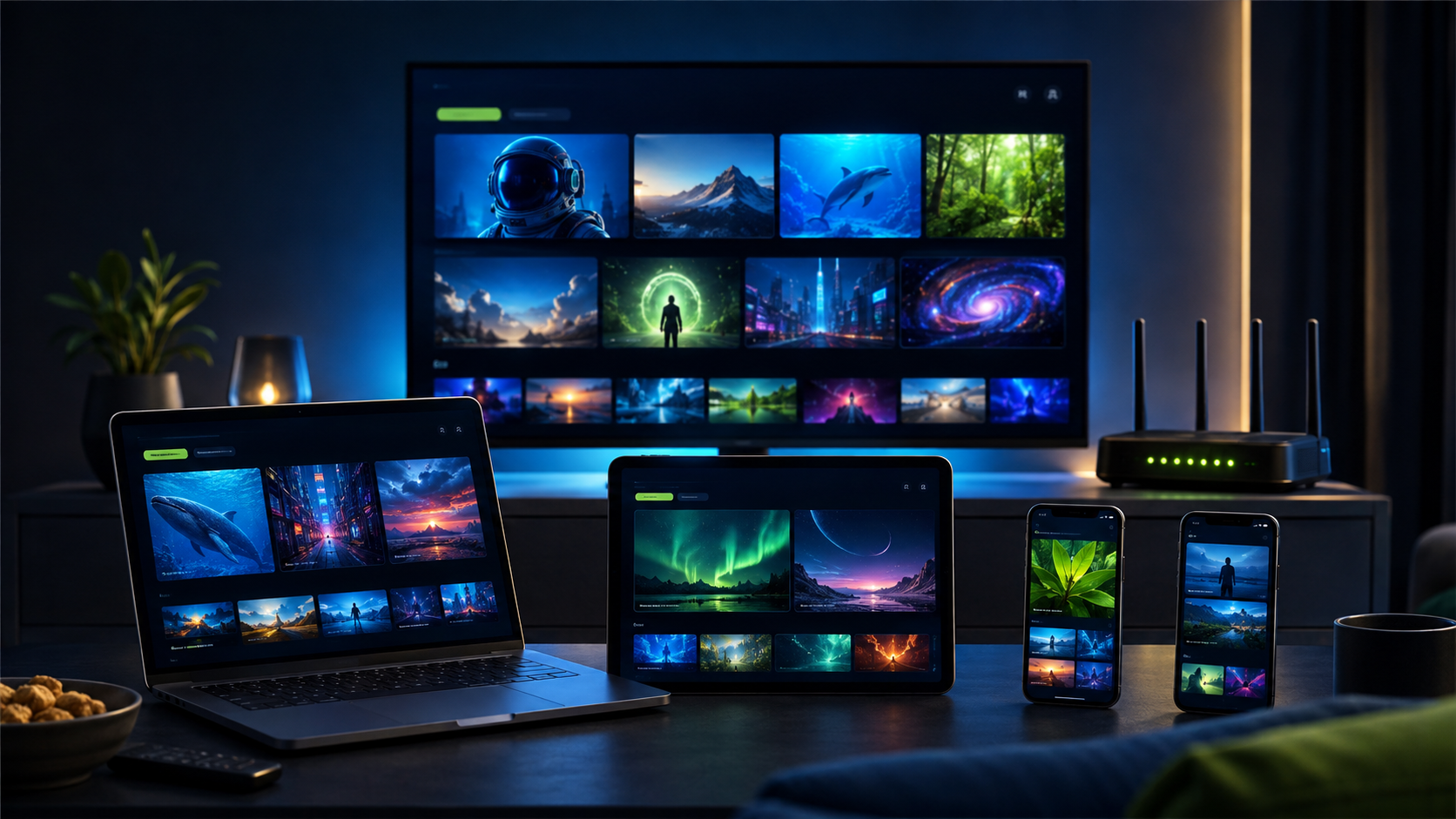
IPTV for 5 devices can suit a busy household, but five installed apps and five simultaneous streams are not the same thing. Before paying for extra connections, map the screens that will actually play at once, test the home network under load, and confirm that every device has a compatible player. These nine checks turn a vague whole-home plan into a setup you can verify.
Table of contents
IPTV for 5 devices: what the plan must include
A five-device plan should clearly state whether it permits five active streams at the same time. Some services allow an account to be installed on several screens while limiting playback to fewer connections. Ask for the simultaneous-connection allowance in writing and keep it with the order details.
1. Map the busiest viewing hour
List the living-room TV, bedroom screens, phones, tablets and computers. Then picture the busiest realistic evening. If only three screens normally play together, a three-connection plan may be better value. Choose five only when the household can genuinely use all five at once.
2. Match every screen to a compatible player
Fire TV, Android TV, Google TV, Samsung, LG, Apple TV, iPhone, iPad, Windows and Mac devices do not all use the same app. Check the PlayHuddleTV setup hub, install players from official stores or publisher sources, and remember that player fees are separate from the television service.
3. Calculate household internet capacity
Five streams share the same internet connection. Test speed and stability where each screen sits—not only beside the router. Other activity such as video calls, downloads and gaming also uses capacity. Our live TV internet-speed guide explains how to test the connection reaching the device.
4. Put fixed screens on Ethernet where practical
Wiring one or two high-use televisions can reduce Wi-Fi congestion for mobile devices. If Ethernet is not practical, use a strong modern Wi-Fi band at a reasonable distance and avoid hiding the router inside a cabinet. The goal is consistent delivery, not only a high speed-test peak.
5. Test all five connections together
A single-screen trial cannot validate IPTV for 5 devices. Start playback on one screen, then add the others one at a time. Keep all five active long enough to observe loading, navigation and guide behavior during normal household traffic. Note exactly when a problem begins.
6. Separate service limits from network problems
If the fifth stream will not start anywhere, confirm the subscription allowance. If one distant television struggles even when used alone, investigate that device or its Wi-Fi coverage. If performance drops only when every screen is active, test router capacity and total bandwidth. Use the buffering troubleshooting checklist before changing several settings at once.
7. Organize private access safely
Name each device and keep the issued login details in a private place. Do not post playlists or credentials in public groups. Setup support may need the device type, player name and visible error message, but it should never request email, app-store, banking or router passwords. The FTC phishing guidance provides independent advice for recognizing suspicious requests.
8. Compare the real five-connection price
Check the full upfront cost, subscription length, renewal method and any player activation fees. Use the current pricing selector to compare device allowances on equal terms. A longer plan can lower the monthly equivalent, but it also increases commitment.
9. Use a 24-hour compatibility trial first
Test the main television, the weakest Wi-Fi room and the busiest period before choosing a paid term. Confirm guide loading, favorites, search and the available live or on-demand sections important to the household. Availability varies by plan, location and applicable rights.
A realistic five-screen test
Imagine two televisions, a Fire TV stick, a tablet and a phone. Start with the main wired TV, add the two wireless televisions, then the mobile screens. If all five work near the router but one bedroom screen fails in its normal room, improve coverage rather than buying another connection. If the fourth and fifth streams fail on every device, ask support to verify the plan allowance. This sequence produces useful evidence instead of random troubleshooting.
IPTV for 5 devices checklist
- Five simultaneous connections confirmed
- Peak household use mapped
- Compatible player chosen for every platform
- All five screens tested together
- Wi-Fi checked in the actual rooms
- Fixed televisions considered for Ethernet
- Total price and renewal terms documented
- Private credentials stored securely
Frequently asked questions
Can five devices use one IPTV account?
They can when the selected plan explicitly includes five simultaneous connections. Installation on five devices alone does not prove that all five may play together.
How much internet speed do five streams need?
It depends on the quality of each available stream and other household traffic. Measure stability at every screen and leave capacity for normal internet use.
Should I buy five connections if I own five screens?
Only if five screens will realistically play at the same time. Otherwise, a smaller allowance can offer better value.
What should I test before paying?
Run all expected simultaneous screens during a free trial, test the weakest room and verify the provider’s setup support and billing terms.
A well-planned IPTV for 5 devices setup matches real simultaneous use, compatible players and a network proven under load. Recheck the plan whenever the household adds a screen or changes internet equipment.
Test five screens before you choose
Request a free 24-hour PlayHuddleTV trial and get personal WhatsApp help testing your supported devices and connection allowance.